Ek Badi Invoice File Se Har Bill Ko Alag Kaise Karein?
F
Free Love PDF Team
Author
4 min read

Is guide mein hum ek badi invoice file se har bill ko alag kaise karein? ko simple steps mein samjhenge, taaki aap bina confusion ke kaam complete kar saken.
Best for
Editor
Reading time
4 min read
What you get
4 practical steps
Quick answer
Is article ka seedha jawab: Badi PDF file Split tool mein upload karein. Iske baad 3 aur simple steps follow karke kaam complete kar sakte hain.
Why This Matters
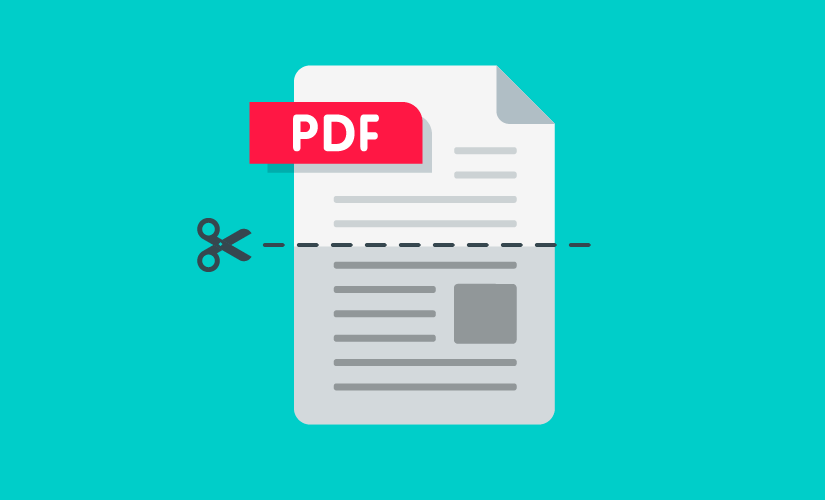
Accounts teams ko ye problem daily aati hai. Bulk scanning se ek hi PDF ban jati hai par client ko sirf uska bill bhejni hota hai. "Split by range" aur "Split every page" ka difference samjhana zaroori hai.
Before you start
- Keep the file you want to work with ready on your device.
- Check the required output format or file-size limit before downloading.
- For important submissions, open the final file once and verify the result before uploading it elsewhere.
Step-by-Step Guide
- 1Badi PDF file Split tool mein upload karein.
- 2"Extract All Pages" ya "Range" (e.g. 1-1, 2-2) select karein.
- 3"Split" button dabayein.
- 4Saari alag-alag files ko ZIP folder mein download karein.
Ready when you are
Try it with your own file
Follow the guide above, then continue directly to the relevant tool.
Common mistakes to avoid
- Entering the wrong page range or selecting the wrong pages.
- Forgetting to confirm which output file contains the required pages.
- Submitting the extracted PDF without checking its page order and readability.
Conclusion
Account management ab bojh nahi lagega. Organization is the key to success!
Related Tags
#Split PDF#Invoice Management#Extract Billing PDF#Office Tips